
Have you ever needed to add admin to your LinkedIn Page? If so, we can help! To best assist you and support your company's success, Suite Edge needs Super Admin access to your LinkedIn company page.
LinkedIn Page super admins can add, edit, or remove content roles and other administrative features on the LinkedIn company page. As part of setting up the LinkedIn company page a Super Admin role is assigned to the creator of a Page. Only a Super Admin can add another Super Admin.
Here are a couple of essential things to note….
- Super admins will receive admin requests through their Activity tab and can view pending requests through their Admin tools.
- If you're the only super admin on the Page, you must assign another super admin before removing yourself.
With that background as to what a Super Admin can do and why they are needed – let's get down to business and walk through the how-to of adding a Super Admin to your LinkedIn company page.
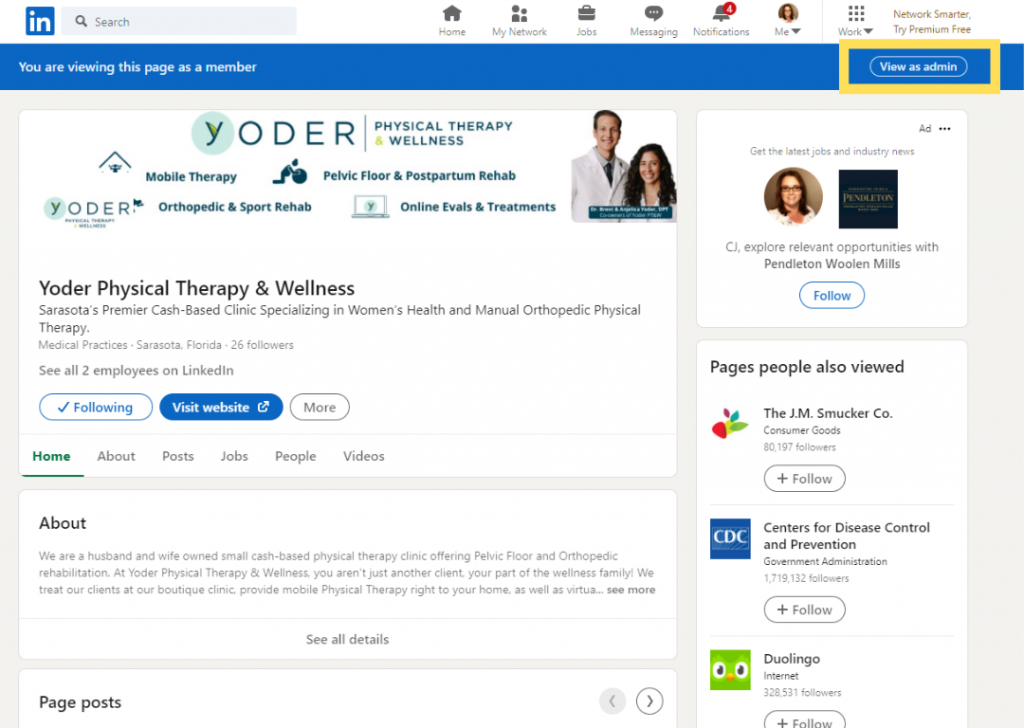
Step 1: Access your Page using the Super Admin view.
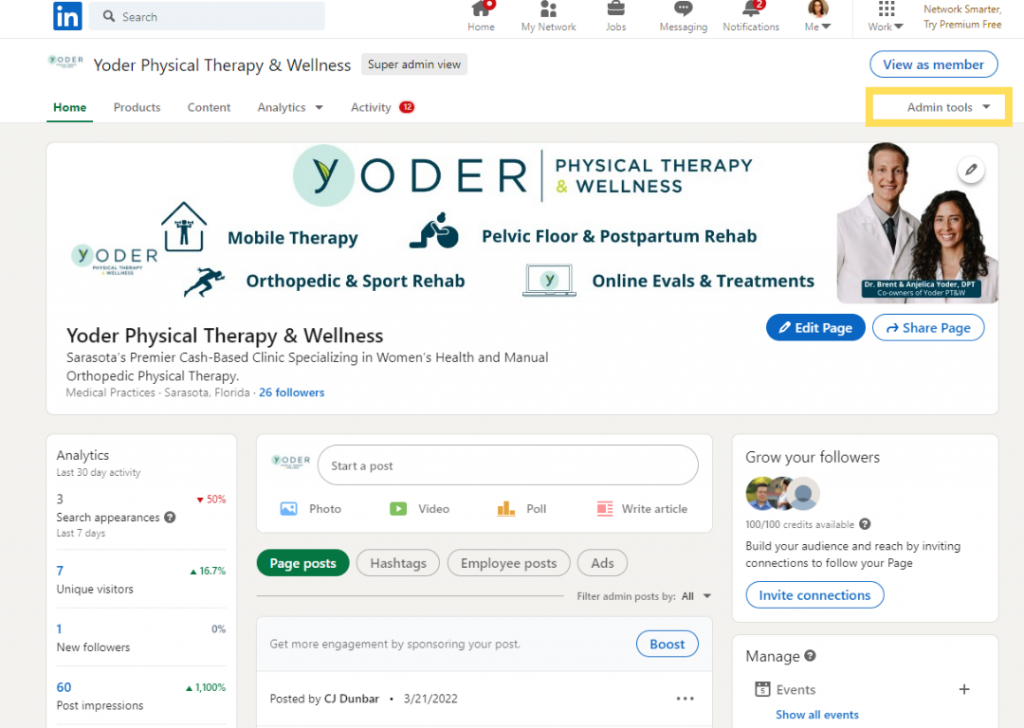
Step 2: Click the Admin tools dropdown at the top of the page and then select Manage Admins.
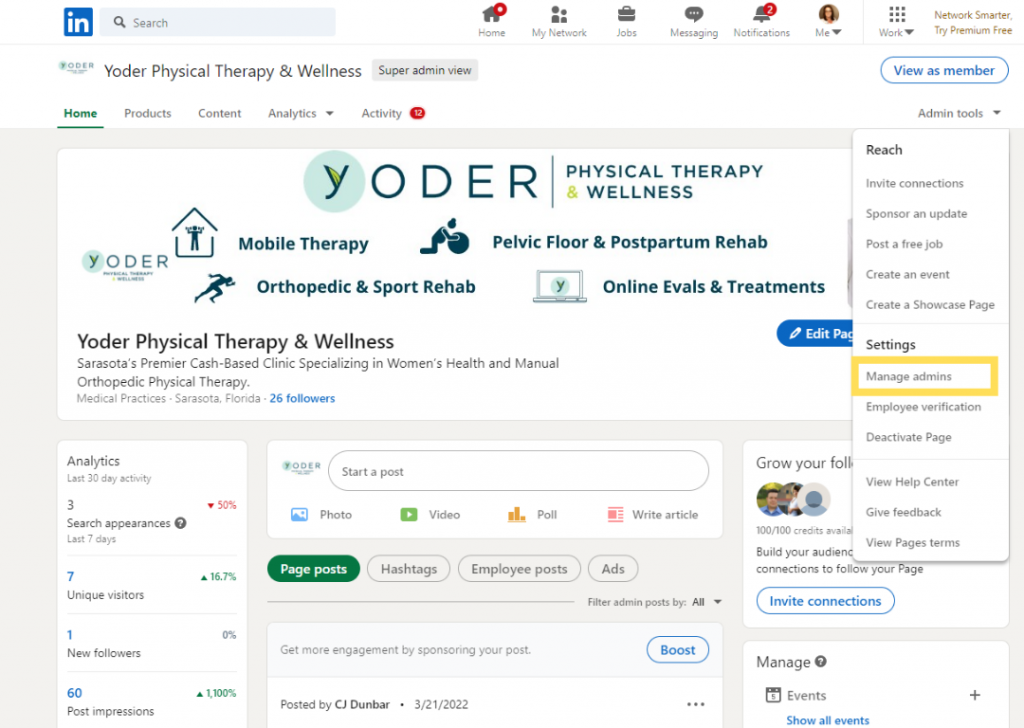
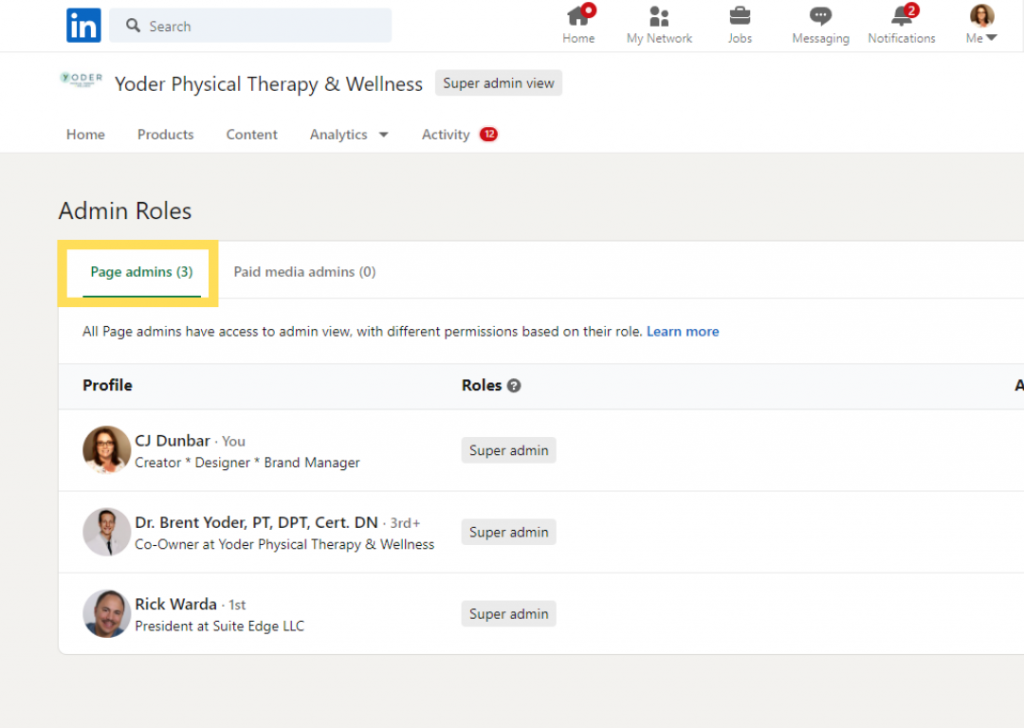
Step 3: Click the Page Admins tab.
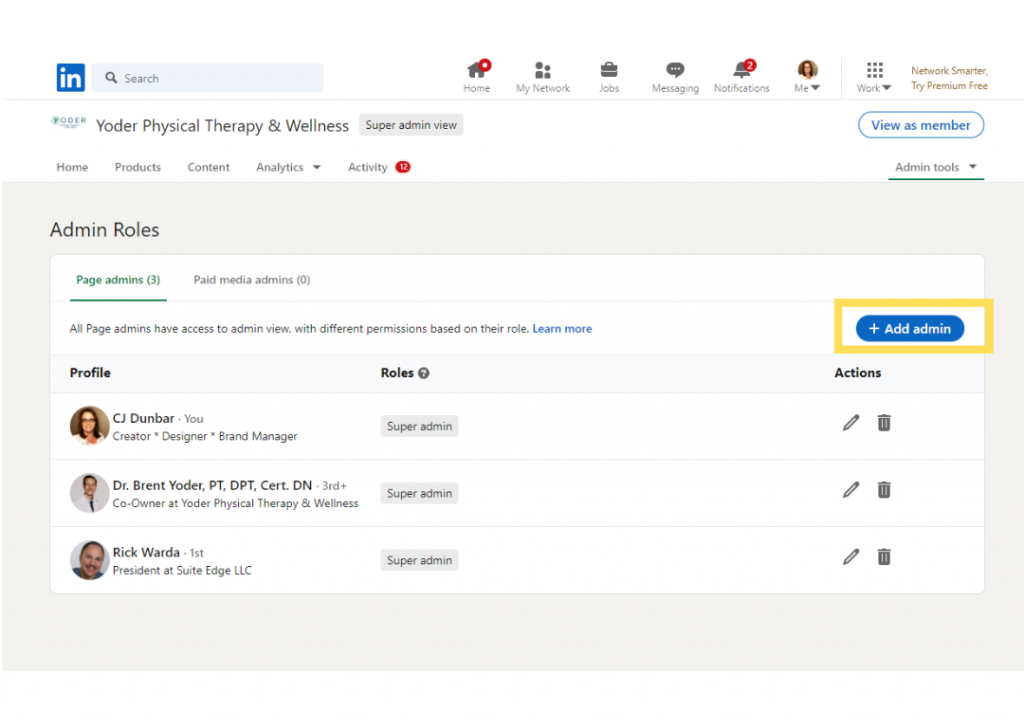
Step 4: Click the Add Admin button.
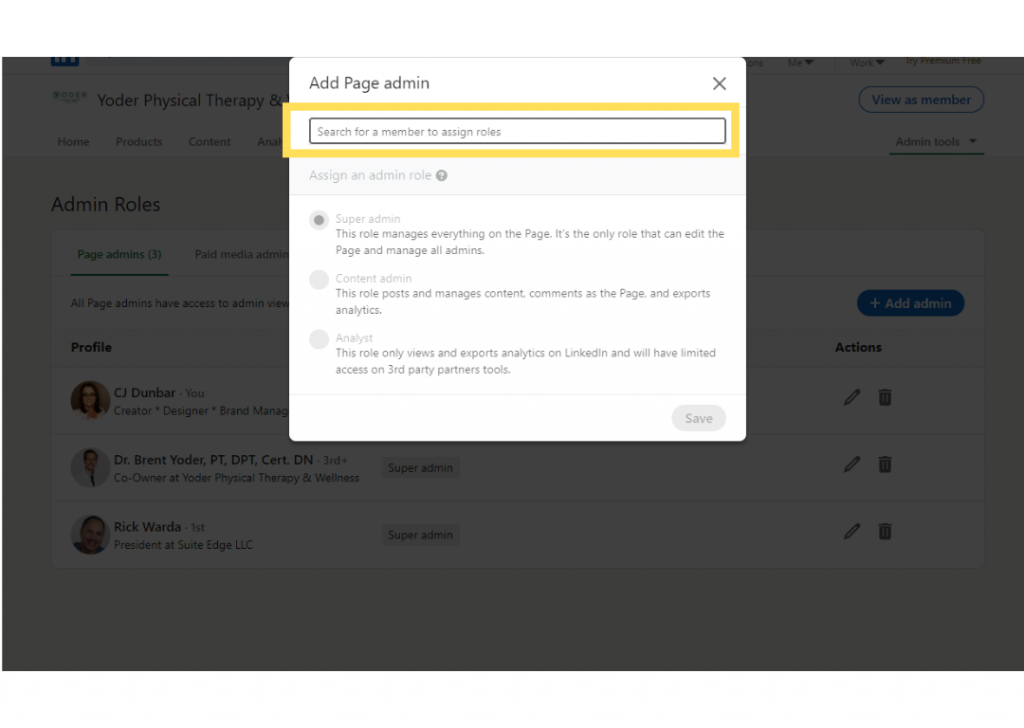
Step 5: Add the requested Suite Edge Brand Manager(s) to your account as a Super Admin by typing the name of the individual you'd like to add in the "Search for a member" text field.
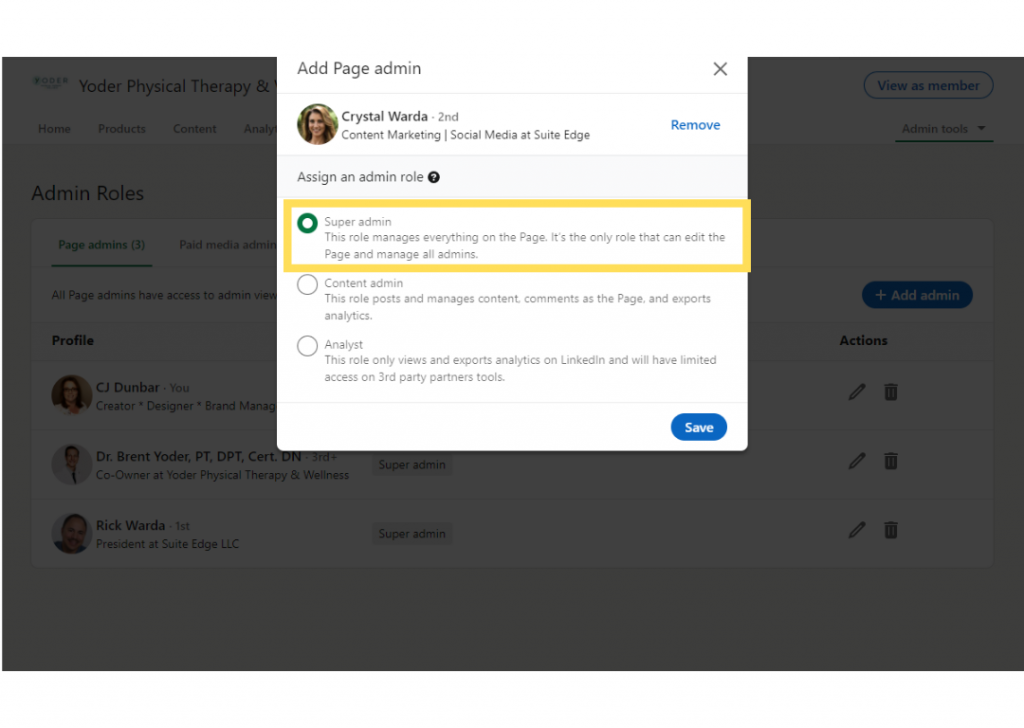
Step 6: Click the member's name from the menu that appears.
Step 7: Select the Super Admin role.
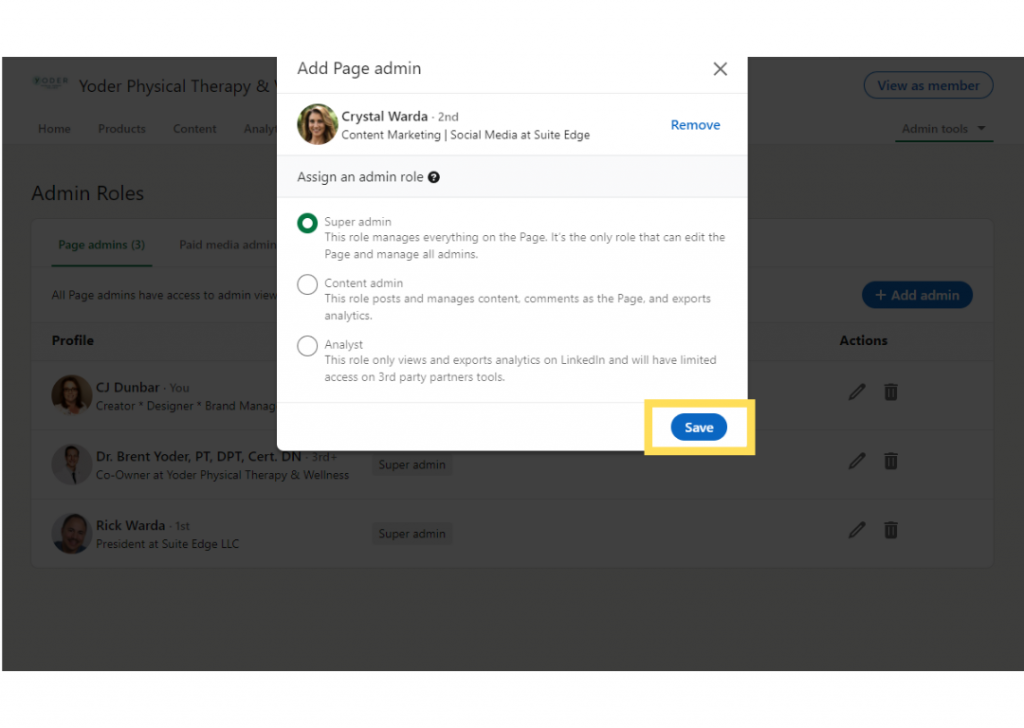
That's it! It was simple and seamless. You have successfully added a Super Admin to your company page on LinkedIn. For other great how-to articles, check out the rest of the Suite Edge Knowledge Base. At Suite Edge, we are here to support you as we work together to make your business famous!